Terminal Basics
What it is, why it’s less scary than you think, what you can do
Most economists at the Kiel Institute have opened Terminal once, typed something, got an error, closed it, and gone back to RStudio. If that’s you, this page is for you.
The terminal is not magic. It’s not for hackers. It’s just a way to tell your computer what to do with words instead of clicks. Once you stop being afraid of it, you’ll wonder why you weren’t using it already.
- MIT Missing Semester — The Shell — 50-minute lecture (video + notes) covering everything below and more
- MIT Missing Semester — Shell Tools and Scripting — Follow-up on pipes, grep, find, and scripting
- Software Carpentry: The Unix Shell — Hands-on tutorial designed for researchers
- explainshell.com — Paste any command, get a plain-English breakdown
What Is a Terminal, Really?
A terminal is a text interface to your computer’s operating system. You type a command, the computer runs it, you see the result. That’s it.
You already know what this feels like — you’ve used the R console, the Stata command window, or a Jupyter cell. Same idea, broader scope. Instead of talking to R, you’re talking to the whole machine.
There’s a Terminal tab right next to Console in RStudio. Click it — that’s a real terminal. Everything in this guide (and Claude Code itself) works there. You don’t need to open a separate application.
“Terminal”, “command line”, “shell”, “CLI”, “bash”, “zsh” — all related, often used interchangeably. Technically:
- Terminal is the window itself (Terminal.app on macOS, Windows Terminal on Windows)
- Shell is the program that interprets what you type (bash, zsh, fish)
- CLI (Command Line Interface) is the general concept
You don’t need to know the difference on day one. You just need to open Terminal and start typing.
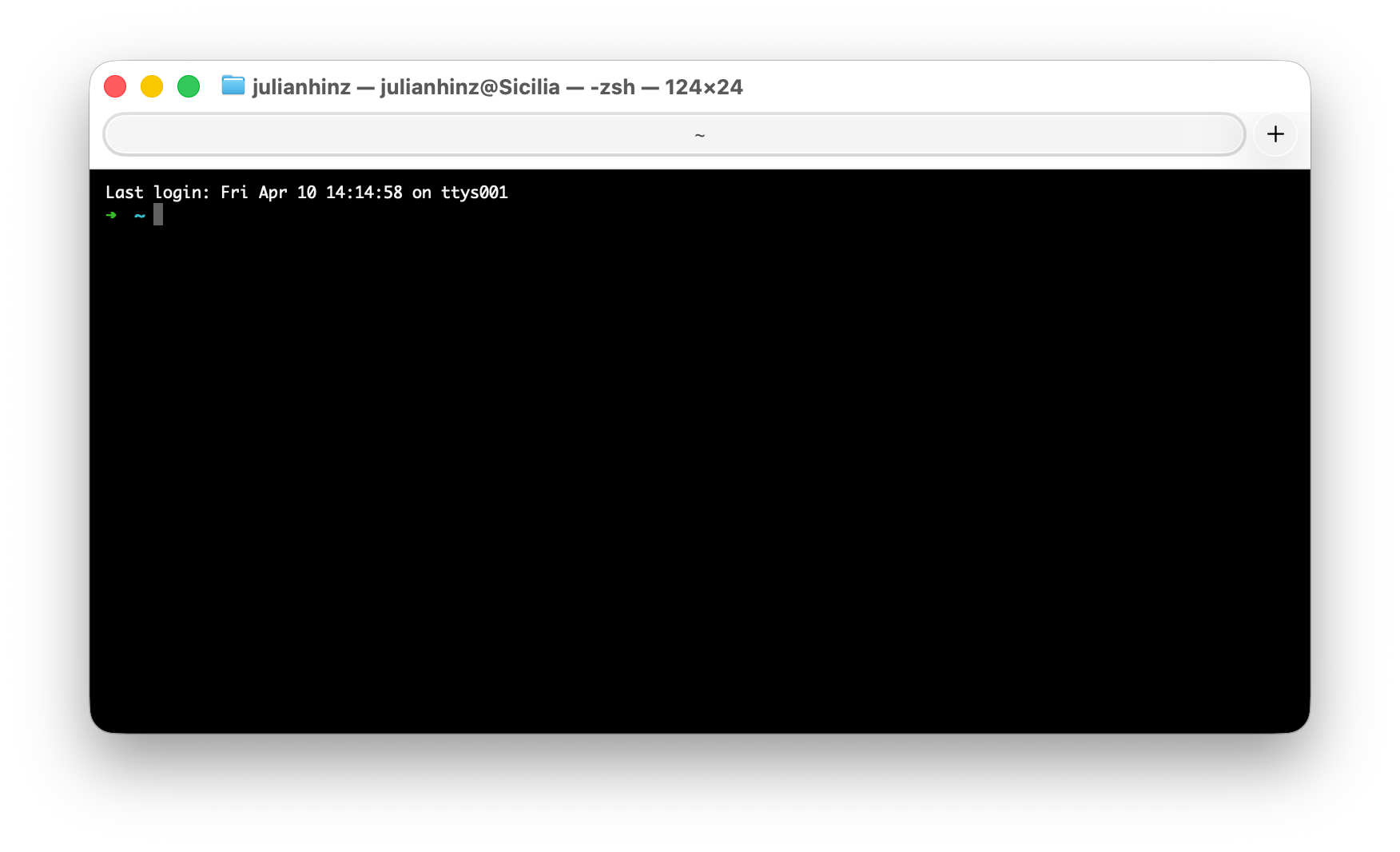
~ means you’re in your home directory. That blinking cursor is waiting for you.Why Bother?
For the workshop, you need it because Claude Code runs in the terminal. But more generally:
- Reproducibility. A shell command can be pasted, shared, and rerun exactly. A click can’t.
- Batch operations. Renaming 500 files, converting every .xlsx in a folder to .csv, or re-running 30 Stata do-files in order — all trivial in the terminal, painful in a GUI.
- Remote servers. When you ssh into a compute cluster, there is no GUI. Terminal or nothing.
- Speed. Once you’re used to it, typing is faster than clicking. You stop thinking about file paths and start thinking about tasks.
- Automation. If you can do it once in the terminal, you can script it.
You don’t need to become a power user. You need enough comfort to type claude and not panic when a line wraps.
Opening a Terminal
Press Cmd+Space to open Spotlight, type terminal, press Enter. Or go to Applications → Utilities → Terminal.app.
You’ll see a window with a line like this:
julianhinz@MacBook-Pro ~ %That’s your prompt. It’s telling you:
julianhinz— your usernameMacBook-Pro— the computer name~— your current directory (~is shorthand for your home folder)%— “ready for your input” (the character varies:$on bash,%on zsh)
Type a command, press Enter. That’s the entire interaction model.
Windows has several terminal options, but for our purposes you want the Ubuntu terminal inside WSL (Windows Subsystem for Linux). Once WSL is installed (see the Windows setup guide), search “Ubuntu” in the Start menu.
You’ll see something like:
julianhinz@DESKTOP-XYZ:~$Same anatomy as macOS. Same commands work inside WSL — because WSL is Linux.
There’s a “Terminal” tab next to “Console” in RStudio. Click it. That’s a real terminal, running inside RStudio. Everything in this guide works there.
The Ten Commands You Actually Need
You do not need to memorize hundreds of commands. You need these ten. Everything else you can google (or ask Claude).
1. pwd — Where am I?
pwdPrints the Present Working Directory. Your current location in the filesystem.
2. ls — What’s here?
lsLists files and folders in the current directory.
Useful flags:
ls -l        # long format: size, date, permissions
ls -a        # show hidden files (those starting with .)
ls -lh       # long format with human-readable sizes (KB, MB, GB)
3. cd — Go somewhere
cd some-folder        # go into some-folder
cd ..                 # go up one level
cd ~                  # go to home directory
cd ~/Documents/paper  # absolute path from home
cd - # go back to the previous directoryType the first few letters of a folder name, then press Tab. The terminal autocompletes. This is the single most useful shortcut in the terminal. Use it constantly.
4. mkdir — Make a folder
mkdir new-project
mkdir -p deep/nested/folder  # -p creates parent folders if needed
5. cp — Copy
cp source.csv backup.csv                      # copy a file
cp -r my-folder my-folder-backup               # copy a folder (recursive)
6. mv — Move or rename
mv old-name.txt new-name.txt                   # rename
mv file.txt ~/Desktop/                         # move to Desktop
7. rm — Delete
rm file.txt                    # delete a file
rm -r my-folder # delete a folder and its contentsrm is permanent
There is no recycle bin. Deleted means gone. Be careful, especially with rm -rf (force + recursive). If you’re unsure, ask Claude Code to show you what would be deleted first.
8. cat / head / tail — Peek at a file
cat README.md           # print entire file
head data.csv           # first 10 lines
head -n 50 data.csv     # first 50 lines
tail -n 20 log.txt      # last 20 lines
Great for sanity-checking data files without opening RStudio or Excel.
9. grep — Find text inside files
grep "Germany" trade.csv             # find lines containing "Germany"
grep -r "TODO" my-project/           # search recursively through a folder
grep -i "germany" trade.csv          # case-insensitive
10. man — Help for any command
man ls
man grep
Opens the manual page. Press q to quit. It’s verbose; you can also google “bash ls” or just ask Claude.
Things That Feel Weird at First (And How to Get Past Them)
1. You can’t use the mouse
Once you’ve typed a line, you can’t click on it to edit. Use arrow keys. Ctrl+A jumps to the beginning of the line, Ctrl+E to the end. Ctrl+U deletes everything before the cursor. Get used to these.
2. Copy-paste is different
- macOS:
Cmd+C/Cmd+Vworks in Terminal.app - Windows Terminal:
Ctrl+Shift+C/Ctrl+Shift+V(plainCtrl+Csends an interrupt signal)
3. Filenames with spaces are a pain
cd "My Important Folder"     # quote the name
cd My\ Important\ Folder     # or escape each space with backslash
This is why everyone names files my_important_folder or my-important-folder. Learn to do the same; your future self will thank you.
4. The output can be overwhelming
Commands produce a lot of text, and it scrolls off-screen. Options:
ls | less                  # pipe into less (scroll with arrow keys, q to quit)
command > output.txt       # redirect output to a file
command 2>&1 | tee log.txt # show output AND save to a file
You won’t need pipes on day one. But know they exist.
5. Interrupting a command
Ctrl+C— send an interrupt signal (stops most running commands)Ctrl+D— end-of-input (exits most interactive prompts)Escape— in Claude Code specifically, this cancels the current turn
Common Workflows for Researchers
Make a quick backup before editing
cp -r trade-paper trade-paper-backup-2026-04-10Count lines in a CSV
wc -l huge-file.csvFind all .do or .R files in a project
find . -name "*.do"
find . -name "*.R"
Check how big a folder is
du -sh my-folder/Open the current folder in Finder (macOS only)
open .Yes, . means “current directory”. You’ll see it a lot.
Using the Terminal with Claude Code
The one command you need for the workshop:
cd ~/ai-day-2026
claude
That starts Claude Code in the workshop folder. Then you’re in a conversation — Claude reads files, writes code, runs it, shows you the output. Exit with /exit.
Between Claude Code sessions, use the terminal to:
- Navigate to different project folders (
cd) - Check what files were created (
ls -lh) - Peek at new files without opening a GUI (
head,tail,cat) - Backup your work before risky experiments (
cp -r)
You don’t need to know more than that.
Making Your Terminal Nicer (Optional)
Once you’re comfortable, consider:
oh-my-zsh(macOS) — adds auto-suggestions, better tab completion, git status in the prompt. ohmyz.sh- A better terminal app — Ghostty (fast, modern), Warp (AI-enhanced), or iTerm2 (classic macOS)
- A color theme — anything easier on the eyes than the default
- Tmux or Zellij — split the terminal into panes (Claude Code on one side, file listing on the other)
None of these are necessary. The default Terminal.app on macOS is perfectly fine for everything in this workshop.
If You Get Stuck
Ctrl+C— cancels almost anything- Type
exit— closes the terminal session cleanly - Close the window — nothing bad happens. You can reopen and start fresh.
- Ask Claude Code — “I’m lost in the terminal. What do I do?”
The terminal is not a sacred space. You cannot break your computer by typing things. The worst you can do is delete files — and even then, only the files you have permission to delete, and only if you use rm deliberately.
Further Reading
- MIT Missing Semester — The Shell — 50-minute lecture (video + notes). The single best free resource for learning the shell.
- MIT Missing Semester — Shell Tools and Scripting — follow-up on pipes, grep, find, and scripting
- Software Carpentry: The Unix Shell — the gold-standard beginner tutorial. If you want to go deeper than this guide, start here.
- The Art of Command Line — a comprehensive cheat sheet for when you’re comfortable with the basics
- explainshell.com — paste any command, get a plain-English explanation
- tldr pages — simplified
manpages with examples