Nuvolos Cloud Setup
Pre-configured workspace — nothing to install
The Kiel Institute provides a Nuvolos cloud workspace for the workshop. Claude Code is already installed — you just need a browser.
Step 1: Enroll
Click the enrollment link to join the workspace:
You can log in with your Kiel Institute SSO credentials. If you don’t have a Nuvolos account yet, one will be created automatically when you enroll.
Step 2: Open VS Code
Once enrolled, open the AI Bootcamp workspace. In the left panel, click the Applications icon, then launch the VS Code machine called DeLorean.
This opens a standard VS Code environment in your browser.
Step 3: Install & Start Claude Code
Open the terminal in VS Code via Terminal → New Terminal (or Ctrl+`, on German keyboards Ctrl+Ö), then:
conda activate claude
npm install -g @anthropic-ai/claude-code@2.1.104
claude
The first command activates the conda environment (conda is a package manager pre-installed on Nuvolos — it sets up the right software environment). The second installs an earlier version of Claude Code that makes the authentication process in Nuvolos much easier. The third starts Claude Code.
Step 4: Authenticate
After choosing your text style and selecting the “Claude account with subscription” option as a login method, a pop-up field will open another tab in your browser. When you try authentication through this tab, it will (most likely) result in a server error.
Instead:
- Close the pop-up and hover over the link displayed in the terminal.
- Select the blue link (see screenshot below), copy it and paste it into a new browser tab.
If you select and copy the link displayed directly, it will include line breaks and the link will fail. Unfortunately, the Cmd/Ctrl + Click option will likely not work in Nuvolos either.
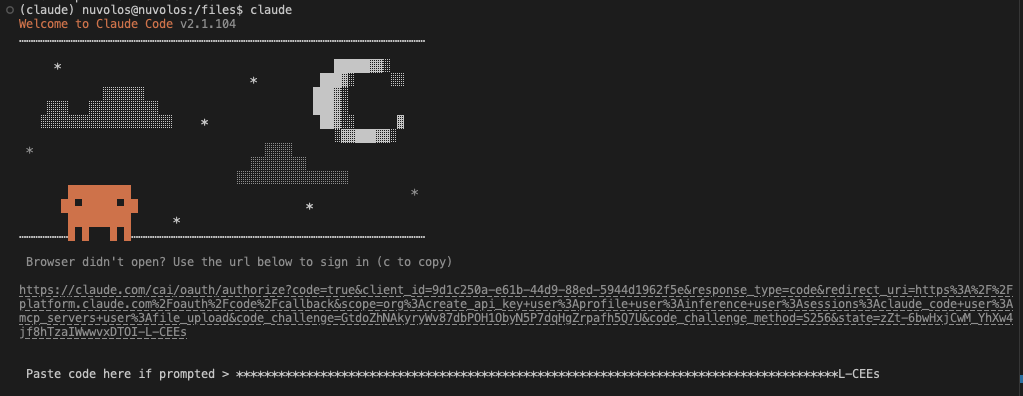
- In the browser tab, a Claude Code authentication page will open. After authorisation, an authentication code will be displayed.
- Copy that code and paste it into the terminal where it says “Paste code here if prompted”. Hit Enter — you should now be logged in successfully.
You only need to do this once — the difficulty is due to the Nuvolos environment, not Claude Code itself. If you still have issues, please reach out to Paula via email or let us know during the session — we’ll be happy to help you with the setup.
Make sure you ran npm install -g @anthropic-ai/claude-code@2.1.104 in Step 3. The default version installed on Nuvolos uses a different authentication flow that doesn’t support pasting codes.
Step 5: Test It
Type your first prompt:
What files are in this folder?
If Claude responds, you’re ready for the workshop.
Nuvolos provides the compute environment, but you need your own Anthropic account with a Claude Pro subscription ($20/month) to use Claude Code. The Kiel Institute will reimburse this. Sign up at claude.ai before the workshop.
After the Workshop
You can keep using Nuvolos beyond the workshop — just create your own project workspace rather than the AI Bootcamp course space. If you’d prefer Claude Code on your own machine, see the macOS or Windows installation guides.
Troubleshooting
| Problem | Fix |
|---|---|
| Can’t log in | Check with Kiel IT — your SSO credentials should work |
| DeLorean doesn’t start | Wait a moment and try again — the VM may take a minute to spin up |
claude: command not found |
Make sure you ran conda activate claude first |
| Can’t paste auth code | Run npm install -g @anthropic-ai/claude-code@2.1.104 first (Step 3) |
| Auth link doesn’t work | Don’t Ctrl+Click — copy the blue link manually and paste into a new tab |
| Terminal looks broken | Refresh the browser tab |